
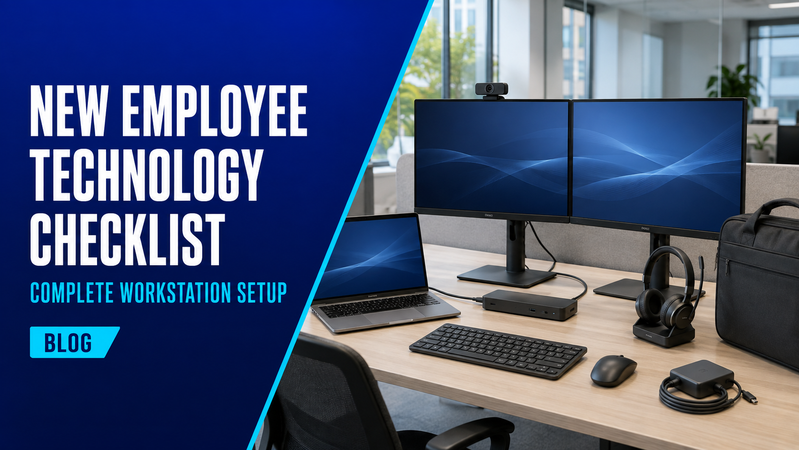
Preparing for a new employee involves more than buying a computer. A missing monitor cable, incompatible docking station or forgotten headset can prevent an otherwise complete workstation from being ready on day one.
This checklist covers the equipment and preparation needed to help your next employee get started, with links to relevant products in the Hunter Office Technology shop.
Start with the employee’s role
Before ordering equipment, confirm how and where the employee will work.
Will they remain at one desk, work between home and the office, or regularly visit customers? Do they mainly use email and business applications, or need equipment for design, detailed plans or other demanding tasks?
Check your organisation’s existing equipment standards with whoever manages your IT. Choosing compatible equipment from the start makes setup and future support easier.
1. A suitable business computer
Choose a computer around the applications the employee needs and the way they work.
A laptop is useful for employees who move between locations or take their computer into meetings. A desktop may suit a permanent workstation where portability is unnecessary.
Before purchasing, check:
- Processor, memory and storage requirements.
- Operating system and business software compatibility.
- Screen size, weight and portability.
- Connections for monitors, docks and accessories.
- Warranty and support arrangements.
Browse laptops in our shop, or contact us to discuss a particular business requirement.
2. A compatible docking station
A docking station can connect a laptop to monitors, a keyboard, a mouse and a wired network through one connection. Some also charge the laptop.
Compatibility matters. Confirm the dock supports the laptop, operating system, number of screens and display resolutions you plan to use. Check its power delivery against the laptop’s charging requirements.
A USB-C connector alone does not guarantee support for every docking feature.
Shop notebook docking stations and check our laptop accessories for additional docking options.
3. External monitors
An external monitor gives employees more room for documents, spreadsheets and everyday applications. Two screens may be useful for people who regularly compare information or work across several programs.
Consider screen size, resolution, desk space and height adjustment. Check the monitor’s connections against the computer or dock, and confirm which cables are included.
If you plan to use a monitor arm, check the screen’s mounting pattern and weight against the arm’s specifications.
4. Keyboard and mouse
A separate keyboard and mouse allow the laptop and screen to be positioned independently.
Choose a layout that suits the employee’s work. A numeric keypad can be useful for frequent data entry, while a compact keyboard takes up less desk space.
Wired accessories avoid battery changes. Wireless options reduce cables, but you should check whether they use Bluetooth or a USB receiver and whether batteries are included.
5. A headset for calls
For employees who regularly make calls or attend online meetings, include a suitable headset in the initial equipment order.
Check the connection type, microphone, controls and compatibility with the employee’s computer and calling software. Comfort matters particularly when a headset will be worn for long periods.
Browse headsets to compare options for desk-based calls and meetings.
6. A webcam where needed
A laptop’s built-in camera may be sufficient, but its position can become awkward when the laptop sits beside an external monitor or remains closed while docked.
An external webcam can be positioned near the screen the employee actually uses. Consider mounting options, field of view, privacy features and connection requirements.
Shop webcams for individual workstations and other video-meeting setups.
7. Chargers, bags and everyday accessories
Employees who work between locations may benefit from a second compatible charger and a protective laptop bag.
Check the charger’s connector, power output and manufacturer compatibility. For a bag or sleeve, compare its internal dimensions with the laptop rather than relying only on the advertised screen size.
Our laptop accessories range includes chargers, bags and other workstation essentials.
8. Cables, adaptors and power connections
Small accessories are easy to overlook. Check the complete path between the computer, dock, monitors and other equipment before ordering.
Your setup may need:
- HDMI or DisplayPort cables.
- USB-C cables supporting the required video, data and charging functions.
- Network cables or adaptors.
- Additional USB connections.
- Suitable power connections for every device.
Measure cable runs and check what comes in each product’s box.
Browse cables and electrical accessories.
9. Printing and scanning access
A new employee may only need access to an existing shared printer. Arrange the connection and test both printing and scanning before their first day.
For employees working remotely or handling specialised documents, consider whether they need a separate printer or scanner. Match the equipment to their document sizes, colour requirements, print volume and scanning workload.
Explore printers and scanners if additional equipment is needed.
10. Software, accounts and access
Arrange the software and permissions with your IT provider or internal IT team before the employee starts.
Confirm that email, business applications, shared files, meeting accounts and printer access are ready. Have your IT team apply the organisation’s security, authentication and backup requirements.
Equipment purchasing and account preparation should happen together so the workstation is ready to use.
Final checks before day one
Before handing over the workstation:
- Connect the computer, dock and every monitor.
- Confirm the laptop charges correctly.
- Test the keyboard, mouse, webcam and headset.
- Make a test call using the organisation’s meeting software.
- Check access to the required applications and shared files.
- Test printing and scanning where needed.
- Pack the charger and travel accessories.
- Record the equipment issued to the employee.
For businesses that recruit regularly, keeping an approved equipment list for common roles can make future purchasing simpler.
Prepare your next employee’s workstation
Hunter Office Technology can help you choose computers, monitors, docks and accessories for a practical workstation.
Shop office technology online, or contact Hunter Office Technology for help checking compatibility and putting together equipment for your next new starter.