
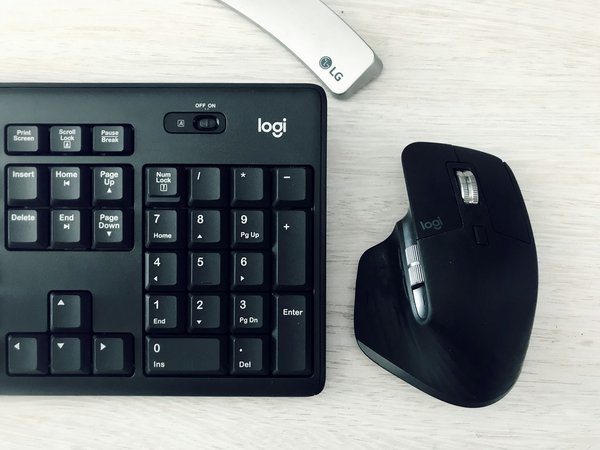
Keyboards and mice are among the most frequently used pieces of workplace technology, yet they are often treated as an afterthought. The right combination can make everyday tasks more comfortable, keep desks organised and help staff work more efficiently.
The best keyboard and mouse for office work will depend on how the workstation is used. A reception desk may need a reliable wired combination, while a hybrid worker might prefer wireless devices that can switch between a laptop and desktop. Someone typing throughout the day may benefit from a quieter or more ergonomic setup.
This guide explains the main differences between wired and wireless devices, mechanical and membrane keyboards, ergonomic designs and business-grade options.
Wired vs Wireless Keyboards and Mice
The first decision is whether to choose a wired or wireless setup.
Wired Keyboards and Mice
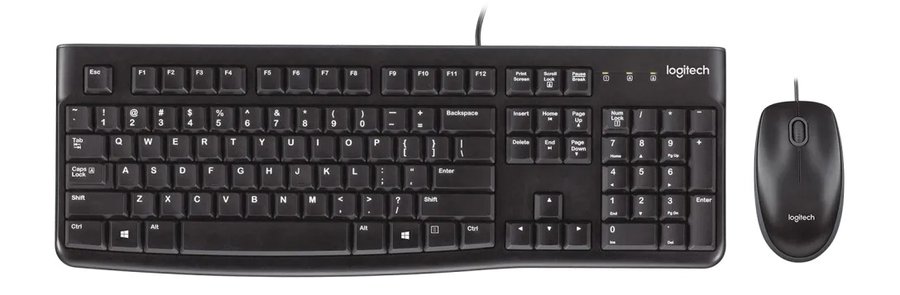
Wired keyboards and mice connect directly to the computer, usually through USB.
Their main advantage is reliability. There are no batteries to replace, no wireless connection to configure and very little chance of interference. Once connected, they are generally ready to use.
Wired devices are a practical choice for:
- Reception and customer service desks
- Shared computers
- Point-of-sale systems
- Schools and training rooms
- Fixed desktop workstations
- Businesses wanting simple, standardised equipment
- Spare or temporary computer setups
They are also usually more affordable than comparable wireless models. The disadvantage is additional cabling, particularly when both the keyboard and mouse require separate USB ports.
For a dependable everyday office setup, a product such as the Logitech MK120 wired keyboard and mouse combination is a sensible starting point.
Wireless Keyboards and Mice
Wireless devices create a cleaner desk and provide more freedom in how the keyboard and mouse are positioned.
They are useful for:
- Home offices
- Laptop workstations
- Meeting rooms
- Hot-desking
- Hybrid workers
- Staff who move between computers
- Workstations with limited cable access
Most wireless keyboards and mice connect using either a small USB receiver or Bluetooth.
A USB receiver usually provides a simple, dependable connection. Some keyboard and mouse combinations use one receiver for both devices, which saves a USB port.
Bluetooth does not require a dedicated receiver, provided the computer supports Bluetooth. It is particularly useful for laptops and tablets with limited USB ports. Some premium Bluetooth devices can also switch between multiple computers.
Wireless devices require batteries or charging, so battery life should be considered when purchasing equipment for multiple staff. Keeping spare batteries available can prevent unnecessary downtime.
USB Receiver or Bluetooth?
Both connection types have advantages.
A USB receiver is usually the easiest choice for a fixed workstation. Plug in the receiver, turn on the devices and begin working. It can also provide a more consistent connection in offices containing many wireless devices.
Bluetooth is useful when USB ports are limited or when the keyboard and mouse need to connect to several compatible devices. However, Bluetooth pairing may require additional setup, particularly on shared computers.
For most business desktops, a wireless combination using one USB receiver offers a good balance of convenience and reliability. For mobile and hybrid workers, Bluetooth or multi-device connectivity may be more useful.
Mechanical vs Membrane Keyboards
The mechanism beneath each key affects how the keyboard feels, sounds and responds.
Membrane Keyboards
Membrane keyboards use a flexible layer beneath the keys to register each press. They are common in homes, schools and offices because they are affordable and relatively quiet.
Advantages include:
- Lower purchase price
- Quiet operation
- Lightweight construction
- Familiar typing feel
- Wide availability
- Suitable for general office work
A membrane keyboard is usually the best option for shared offices, reception areas and workplaces where typing noise could distract other staff.
The keys may feel softer than those on a mechanical keyboard, and heavy users may eventually notice the keyboard becoming less responsive. However, a quality membrane keyboard should still provide years of reliable general office use.
Mechanical Keyboards
Mechanical keyboards use a separate mechanical switch beneath each key. They provide a more distinct and consistent keypress and are popular with heavy typists, programmers, creative professionals and gamers.
Advantages include:
- Clearer key feedback
- Consistent typing feel
- Strong durability
- Different switch types to suit personal preferences
- Individual keys that are easier to replace on selected models
The main disadvantage is noise. Some mechanical switches are noticeably loud and may be unsuitable for open offices, reception desks or shared workspaces. Mechanical keyboards can also be larger and more expensive.
Quieter mechanical switches are available, but businesses should consider the surrounding work environment before choosing them for multiple staff.
Scissor-Switch and Low-Profile Keyboards
Many slim desktop and laptop-style keyboards use scissor switches. These provide shorter key travel and a lower-profile design.
They are usually quiet and comfortable for users accustomed to laptop keyboards. Their compact design also makes them useful for smaller desks and mobile workstations.
Full-Size or Compact Keyboard?
Keyboard size can affect both productivity and desk space.
Full-Size Keyboards
A full-size keyboard includes the main typing area, navigation keys, function keys and a separate number pad.
It is generally the best choice for:
- Accounting and finance
- Data entry
- Administration
- Spreadsheets
- Invoicing
- Staff regularly entering numbers
The number pad can significantly improve efficiency for users working with financial data or numerical records.
Compact Keyboards
Compact keyboards remove the number pad or reduce the spacing between keys. They take up less desk space and allow the mouse to be positioned closer to the body.
They are useful for:
- Small home offices
- Mobile and hybrid workers
- Laptop users
- Staff who rarely enter numerical data
- Workstations with limited desk space
Before choosing a compact keyboard, check whether the user relies on a number pad, dedicated navigation keys or function keys in their everyday software.
Ergonomic Keyboards and Mice
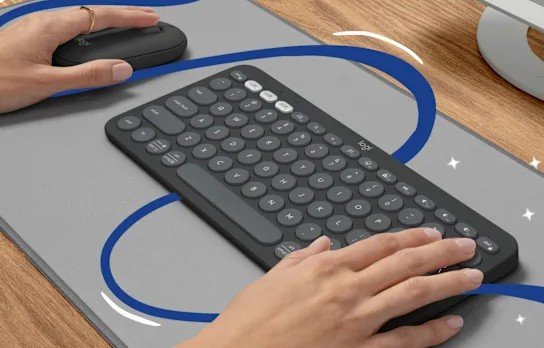
Ergonomic accessories are designed to encourage a more natural hand, wrist and arm position. They can be helpful for staff who spend long periods typing or using a mouse.
However, no single design suits everyone. Hand size, typing style, desk height and personal preference can all affect comfort.
Ergonomic Keyboards
Ergonomic keyboards may have a curved, split or angled design. Some divide the keyboard into two sections so the hands can remain further apart while typing.
Features to consider include:
- Curved or split key layout
- Adjustable keyboard angle
- Low-profile keys
- Padded palm support
- Separate or removable number pad
- Quiet keys
- Wrist position while typing
An ergonomic keyboard may take time to get used to, particularly for someone who has spent years using a standard layout.
Ergonomic Mice
A traditional mouse positions the hand flat against the desk. An ergonomic or vertical mouse rotates the hand into a more natural handshake-style position.
Options include:
- Vertical mice
- Sculpted office mice
- Trackball mice
- Left-handed mice
- Larger mice for bigger hands
- Compact mice for mobile use
- Mice with adjustable pointer sensitivity
A vertical mouse can be worth considering for someone who finds a standard mouse uncomfortable, while a trackball requires less desk movement and can work well in confined spaces.
Ergonomic equipment should form part of a properly arranged workstation. Chair height, desk height, monitor position, regular movement and breaks remain important.
Quiet Keyboards and Mice for Shared Offices
Keyboard and mouse noise can become distracting in open offices, reception areas and shared workspaces.
Silent or low-noise devices reduce the sound of typing and mouse clicks without changing the basic layout. They can be particularly useful for:
- Shared offices
- Customer-facing reception desks
- Phone-based staff
- Video meetings
- Home offices used by multiple people
- Early-morning or evening work
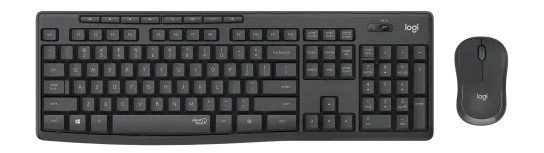
The Logitech MK295 Silent wireless combination is an example of an office-focused setup designed to reduce typing and clicking noise.
What Makes a Keyboard and Mouse Business-Grade?
Business-grade accessories are not necessarily the most expensive. They are products designed to provide dependable everyday operation across workplace environments.
Important qualities include:
- Reliable wired or wireless connection
- Strong battery life
- Durable keys and buttons
- Familiar layouts
- Compatibility with business computers
- Easy deployment across multiple desks
- Reputable manufacturer warranty
- Readily available replacement units
- Quiet operation where required
- Spill-resistant design on selected keyboards
Standardising the same keyboard and mouse across multiple workstations can make purchasing, setup and replacement easier. Staff also receive a consistent experience when moving between desks.
Hunter Office Technology can supply options from recognised brands including Logitech, Microsoft, Kensington, Shintaro and Cygnett, with other business technology brands available depending on requirements.
Our Keyboard and Mouse Picks by Use Case
Individual models and availability can change, but the following configurations are useful starting points.
Best Basic Wired Office Setup
Recommended type: Full-size wired membrane keyboard and optical mouse.
This is a dependable and affordable choice for reception desks, shared workstations, schools and fixed desktop computers.
A popular example is the Logitech MK120 wired keyboard and mouse combination.
Best-Value Wireless Combination
Recommended type: Full-size wireless keyboard and mouse sharing one USB receiver.
This creates a cleaner desk without requiring separate receivers for each device. It suits general administration, home offices and standard business workstations.
The Logitech MK270R wireless keyboard and mouse combination is a practical all-round option.
Best for a Quiet Office
Recommended type: Silent wireless keyboard and mouse combination.
This is ideal for shared offices, customer service teams and workstations where typing noise is distracting.
The Logitech MK295 Silent combines wireless convenience with quieter keys and mouse clicks.
Best for Business Deployment
Recommended type: Business-focused wireless keyboard and mouse with a secure, dependable receiver connection.
For businesses purchasing equipment across several desks, look for consistent availability, strong battery life, a familiar full-size layout and a suitable warranty.
The Logitech MK370 for Business is designed specifically for workplace deployment.
Best Ergonomic Setup
Recommended type: Curved or split ergonomic keyboard paired with a vertical or sculpted mouse.
Logitech Ergo and Kensington Pro Fit products are strong starting points for users wanting an alternative to traditional keyboard and mouse designs.
Because comfort is personal, ergonomic devices should ideally be chosen based on the individual user rather than purchased as one standard option for every employee.

Best Budget Wireless Setup
Recommended type: Basic wireless keyboard and mouse combination with one USB receiver.
Straightforward options from Shintaro and Cygnett can suit spare computers, light-use desks and cost-conscious workplace installations.
Should You Buy a Keyboard and Mouse Combination?
A combination package is convenient because the keyboard and mouse are designed to work together and usually share one receiver.
A combination is a good choice for:
- New computer installations
- Office rollouts
- Home workstation upgrades
- Replacement business equipment
- Shared and temporary desks
Buying separately provides more flexibility. A user may prefer a full-size keyboard but need a larger ergonomic mouse, for example.
For general office work, a combination offers the best simplicity and value. For heavy daily users or staff with specific comfort requirements, selecting each device separately may produce a better result.
Frequently Asked Questions
Is a wired or wireless keyboard better for office work?
Wired keyboards are affordable, reliable and do not require batteries. Wireless keyboards reduce desk clutter and provide more flexibility. Both are suitable for office work, so the best choice depends on the workstation and available USB ports.
Are mechanical keyboards good for offices?
Mechanical keyboards provide strong key feedback and durability, but some switches can be noisy. Quiet mechanical switches may suit individual offices, while membrane or low-profile keyboards are usually better for shared workplaces.
Is an ergonomic mouse worth it?
An ergonomic mouse can provide a more comfortable hand position for some users, particularly those who use a mouse for long periods. Vertical, sculpted and trackball designs feel different, so personal preference is important.
Is Bluetooth better than a USB receiver?
Bluetooth saves a USB port and can support switching between devices. A dedicated USB receiver is often easier to set up and can provide a more consistent connection for fixed business workstations.
Do wireless keyboards and mice use the same receiver?
Keyboard and mouse combinations usually share one receiver. Separately purchased wireless devices may require individual receivers unless they support the same compatible connection system.
Need Help Choosing Computer Accessories?
The best keyboard and mouse setup should suit the user’s workload, desk space and preferred way of working.
Hunter Office Technology can help supply wired, wireless, silent and ergonomic accessories for home offices and businesses. We can also assist with monitors, docking stations, webcams, headsets, cables and other equipment needed to complete a practical workstation.
Explore our computer accessories and workstation solutions or browse keyboards, mice and accessories online.
For larger business orders or help selecting a consistent setup for your team, contact Hunter Office Technology for advice and a tailored quote.