
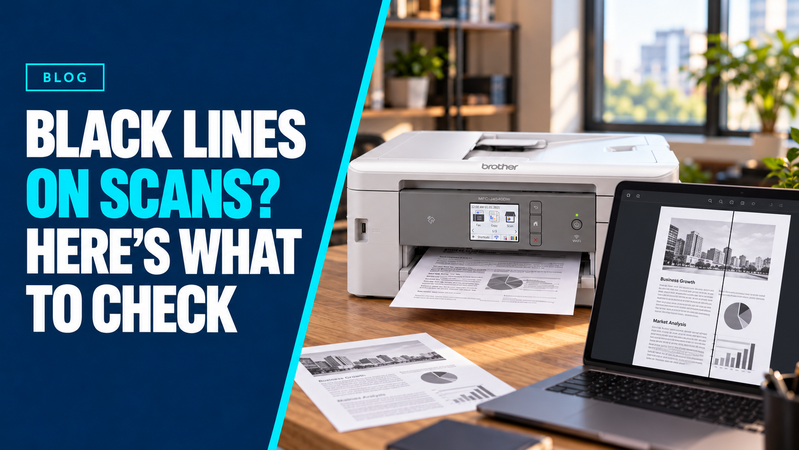
You scan or photocopy a document and notice a dark line running down the page. You try again, but the line appears in exactly the same place.
Your first thought might be that the printer needs toner or a new drum. However, if documents printed from your computer look normal, the problem may be on the scanning side of the machine.
A few comparisons can help narrow it down before you spend money on replacement supplies.
Start With Three Simple Checks
Using a clean original document, compare these results:
- Print from your computer. Choose a document you know does not contain the unwanted line.
- Copy from the flatbed glass. Place the original directly on the large scanner glass.
- Scan or copy through the document feeder. Feed the same original through the tray on top. Check the copy, or open the saved scan on your screen.
If the computer print and flatbed copy are clean, but the feeder scan or copy has a line, the document feeder’s scanning area is a likely place to investigate.
If the line also appears on computer prints, the issue needs a different troubleshooting approach. It may involve the printing mechanism rather than the scanner.
How a Tiny Mark Becomes a Full-Page Line
When you use the flatbed, the scanning mechanism typically moves beneath the stationary document.
When you use the automatic document feeder, the paper moves past a narrow scanning area. A small mark on that area can therefore appear as a continuous line as the page passes over it.
Dust, ink, adhesive residue or correction fluid can cause this problem. Because copying also involves scanning the original, the same mark can appear on both saved scans and photocopies.
Check the Narrow Glass Strip
Many multifunction printers have a narrow strip of glass beside the main flatbed. It is easy to overlook when cleaning the larger surface.
Follow your model’s instructions for switching off and cleaning the scanner. Use the recommended cloth and cleaning method, and avoid spraying liquid directly onto the machine.
Look carefully along the strip under good lighting. A small speck can be difficult to see but still affect every page.
Some machines have a second scanning surface for reading the reverse side of a document. If the line appears on only one side of a double-sided scan or copy, check the model’s instructions for accessing and cleaning that area.
Test Again Before Replacing Anything
Once cleaning is complete, scan or copy the same original through the feeder again.
If possible, also check a saved scan on screen. This helps separate a mark captured during scanning from one introduced during printing.
If cleaning removes the line from your scans and copies, replacing toner or a drum is unnecessary for that fault.
When Cleaning Doesn’t Solve It
Persistent lines can require further investigation. Scratched glass or a scanner fault may need professional attention rather than repeated cleaning.
Before requesting help, note:
- Whether the line affects scans, copies, computer prints or all three.
- Whether it appears through the feeder, flatbed or both.
- Whether one or both sides are affected.
- Whether cleaning changed the result.
Keep a sample file or page showing the problem. Hunter Office Technology can use these details to help identify the cause and determine whether your machine needs servicing.