
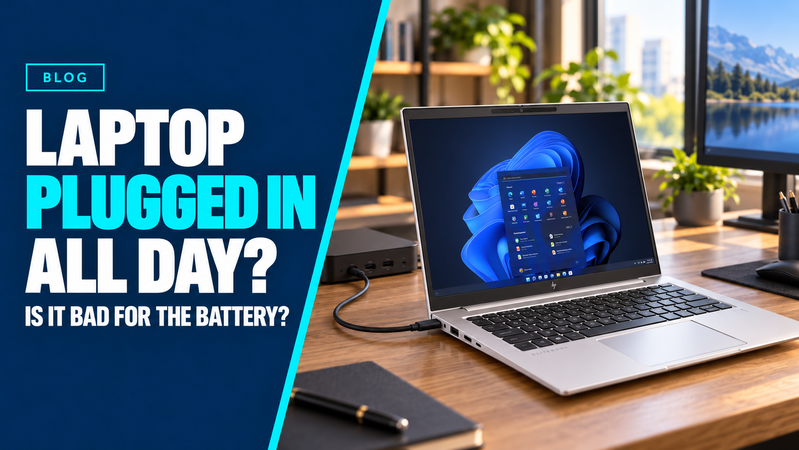
You arrive at work, connect your laptop to its docking station and leave it there until home time. The monitors, keyboard and mouse connect, while the same cable keeps the laptop charged.
It is a convenient setup, but does spending every day plugged in damage the battery?
For a modern laptop in good condition, working while connected to power is normal. However, charging protection, battery ageing and heat are different issues—and understanding them can help you look after the machine.
Can You Overcharge a Modern Laptop?
Modern laptops manage charging automatically. They do not keep forcing more charge into a full battery simply because the power cable remains connected.
You generally do not need to unplug your laptop the moment it reaches 100%.
However, preventing overcharging does not prevent normal battery ageing. Lithium-ion batteries gradually lose capacity, and spending prolonged periods at a high charge level, particularly in warm conditions, can accelerate that process.
Check for a Battery Health Setting
Many laptops offer a feature that adjusts charging to help preserve battery health.
Depending on the manufacturer and model, it may be called Smart Charging, Battery Health Manager, Conservation Mode or a similar name.
These features may limit the maximum charge or adjust charging automatically based on how the laptop is used. For example, supported HP business notebooks offer battery health management intended for machines that spend most of their time connected to power. HP® Support
Look in the manufacturer’s support application or your model’s documentation. Some settings are managed through the BIOS or by your workplace IT team.
Not every laptop supports the same options, and there is no universal Windows switch that adds charge limiting to every device.
Why Your Battery Might Stop at 80%
A laptop that stops charging below 100% is not necessarily faulty.
An enabled charging limit may deliberately hold the battery at a lower level. Microsoft explains that supported devices can use Smart Charging to maintain a battery level better suited to long-term health. Microsoft Support
Before replacing a charger or reporting a battery fault, check whether a battery-care feature is active.
If you need maximum runtime for travel, your laptop may let you temporarily charge fully. Follow the instructions for that particular model.
Heat Matters Too
Battery care also involves how and where you use the laptop.
A machine connected to a dock still needs adequate ventilation, especially when running demanding applications or several displays.
Good everyday habits include:
- Keeping cooling vents clear.
- Using a firm surface rather than cushions or bedding.
- Avoiding direct sunlight and hot parked cars.
- Leaving space around the laptop for airflow.
- Checking the manufacturer’s guidance before using it closed in a stand.
A charging limit cannot compensate for an unsuitable operating environment.
Do You Need to Drain the Battery Regularly?
There is no need to deliberately run a modern laptop flat as a routine battery-care habit.
Use battery power when you need mobility and connect to power when convenient. Avoid repeatedly forcing full discharges simply because you have heard the battery needs “exercise”.
For a laptop that mainly stays at a desk, supported charging-management features are more practical than constantly watching the battery percentage.
Match the Settings to Your Working Day
Desk-based employees and frequent travellers have different needs. The aim is to balance useful battery runtime with sensible long-term care.