(02) 4973 1313 | info@hunterofficetechnology.com.au
Menu

Best Monitors for Home Offices and Businesses in Australia

1 June 2026
Best Monitors for Home Offices and Businesses in Australia

A good monitor can make a bigger difference to your working day than many other computer upgrades. A larger, clearer screen makes it easier to work across emails, spreadsheets, documents and business applications, while the right connections can turn a laptop into a complete desktop-style workstation.

However, comparing business monitors can quickly become confusing. Do you need Full HD or 4K? Is IPS better than VA? Is a 24-inch screen large enough? And is USB-C worth paying extra for?

This monitor buying guide explains the most important features and helps you choose the best monitor for your home office or business.

Full HD, QHD or 4K: Which Resolution Do You Need?

Resolution describes the number of pixels displayed on the screen. A higher resolution generally produces sharper text, clearer images and more detailed visuals.

Full HD

Full HD, also called FHD or 1080p, has a resolution of 1920 × 1080.

It remains a practical and affordable choice for everyday office work, including:

  • Email and web browsing
  • Microsoft Word and other documents
  • Accounting and booking software
  • General administration
  • Reception and point-of-sale work
  • Video meetings

Full HD works particularly well on a 22-inch or 24-inch monitor. It is also a cost-effective option for businesses setting up multiple desks or installing dual monitors.

On a 27-inch screen, Full HD can look less sharp because the same number of pixels is spread across a larger area. It may still be suitable for basic work, but QHD is generally a better match for this screen size.

QHD

QHD has a resolution of 2560 × 1440 and sits between Full HD and 4K.

For many office users, a 27-inch QHD monitor offers the best balance of clarity, screen space and price. It provides more usable desktop space than Full HD without the higher cost and computer requirements associated with 4K.

QHD is an excellent choice for:

  • Large spreadsheets
  • Working with multiple documents
  • Business dashboards
  • Accounting and finance teams
  • Marketing work
  • Dual-window multitasking
  • Staff who spend most of the day at a computer

Although QHD was not always common in standard offices, it has become one of the strongest all-round options for modern business workstations.

4K

A 4K monitor has a resolution of 3840 × 2160—four times the total pixel count of Full HD.

This produces much sharper text and significantly more image detail. A 4K monitor makes sense for graphic design, photography, video editing, detailed plans, high-resolution content and users who want particularly crisp text.

It is best suited to 27-inch and 32-inch screens. On smaller displays, the extra detail may be difficult to appreciate without adjusting Windows display scaling.

A 4K monitor is worth considering if image quality and detail are important. For basic email, web browsing and office administration, however, a good Full HD or QHD monitor will usually provide better value.

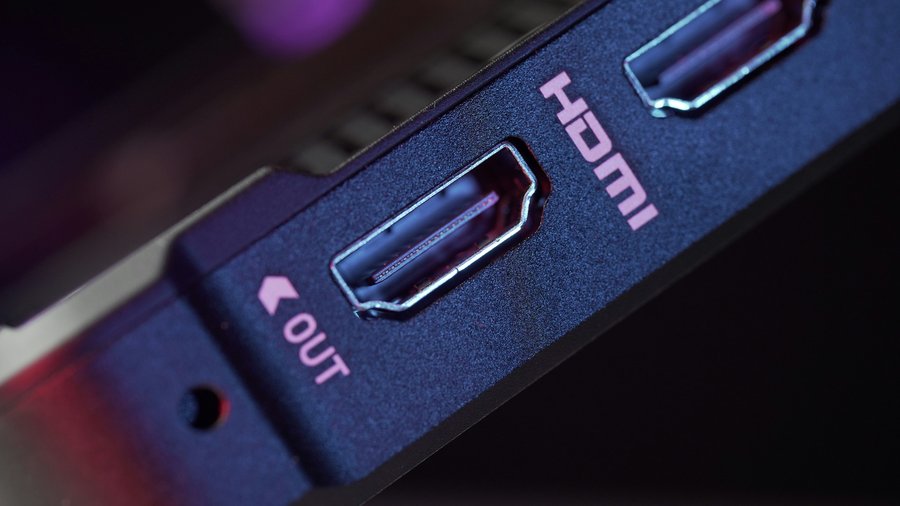
hdmi in

IPS vs VA Panels

The panel type affects colour, contrast and how the picture looks when viewed from different angles.

IPS Monitors

IPS stands for In-Plane Switching. IPS panels are known for consistent colours and wide viewing angles.

They are generally the best all-round choice for home offices and business environments because the image remains clear when viewed slightly from the side. This is useful when two people are looking at the same screen or when monitors are used in a dual-screen arrangement.

IPS monitors are well suited to:

  • General office work
  • Graphic design and marketing
  • Photo editing
  • Shared workstations
  • Dual-monitor configurations
  • Meeting and reception areas

For most business buyers, an IPS monitor is the safest choice.

VA Monitors

VA stands for Vertical Alignment. VA panels usually provide stronger contrast and deeper blacks than similarly priced IPS displays.

They can be a good choice for larger or curved monitors, video content and work where strong contrast is more important than perfect viewing angles. However, colours may change slightly when the screen is viewed from the side.

VA monitors can make sense for:

  • Large single-screen workstations
  • Curved and ultrawide monitors
  • Video viewing
  • Users who value stronger contrast
  • Home offices used for both work and entertainment

Neither technology is automatically better. IPS is usually preferable for general business use, while VA can be attractive for larger screens and contrast-focused applications.

What Monitor Size Is Best for Office Work?

Monitor size is measured diagonally from one corner of the screen to the opposite corner.

22 to 24 Inches

A 24-inch Full HD monitor is one of the best-value options for general office work. It provides enough room for everyday applications without taking up too much desk space.

This size is ideal for:

  • Reception desks
  • Administration
  • Compact home offices
  • Schools and training rooms
  • Dual-monitor setups
  • Businesses purchasing monitors in larger quantities

Two matching 24-inch monitors can provide considerably more working space than one larger screen while still being affordable.

27 Inches

A 27-inch monitor is the current sweet spot for many home office and business users.

It provides more room for spreadsheets, documents and side-by-side windows while remaining comfortable on most standard desks. QHD is generally the ideal resolution at this size, although 4K is worthwhile for users wanting maximum clarity.

A 27-inch monitor is a strong choice for managers, accountants, marketing staff, professional services and anyone who regularly works across multiple applications.

32 Inches

A 32-inch monitor provides a large working area and is best paired with QHD or 4K resolution.

It can replace a dual-monitor arrangement for some users, particularly when working with large spreadsheets, plans, timelines or multiple windows. However, it requires more desk depth so the user can sit at a comfortable viewing distance.

Dual Monitors or One Large Monitor?

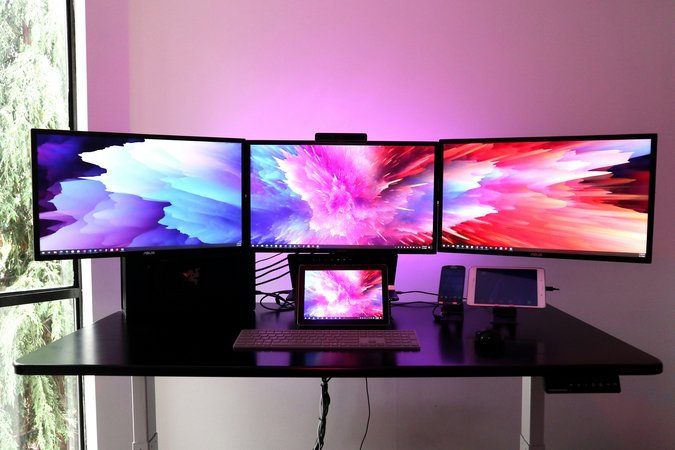
Dual monitors are highly useful for users who constantly switch between applications. You might keep email or reference material on one screen while working in another program on the second.

A single 32-inch or ultrawide monitor creates a cleaner setup without a gap between screens. However, dual monitors often make it easier to separate different applications and share one screen during online meetings.

The best choice depends on available desk space and how the workstation is used.

dual monitor

USB-C, HDMI and DisplayPort Explained

Before buying a monitor, check the connections available on both the monitor and the computer.

HDMI

HDMI is the most widely recognised monitor connection. It carries digital video and audio and is found on most desktops, laptops, monitors and televisions.

It is a simple and reliable option for standard office setups. However, some thin business laptops may require an adapter or docking station because they do not include a full-size HDMI port.

DisplayPort

DisplayPort is common on business desktops, docking stations and professional monitors.

It supports high resolutions and refresh rates, making it a strong choice for QHD, 4K and multi-monitor setups. Selected DisplayPort monitors can also support daisy-chaining, allowing compatible screens to be connected together with fewer cables.

USB-C

USB-C can provide video, data and laptop charging through a single cable. A USB-C monitor can therefore act as a basic docking station.

With a compatible setup, a user can arrive at their desk, connect one cable and access:

  • The external monitor
  • Laptop charging
  • USB keyboard and mouse
  • Webcam or other USB accessories
  • Network access on monitors with Ethernet

This is especially useful for hybrid workers who regularly move their laptop between home and the office.

Not every USB-C port supports video, and charging capacity varies between monitors. Check that the laptop supports DisplayPort Alt Mode, USB4 or Thunderbolt and that the monitor’s power output is sufficient for the laptop. For many standard business laptops, 65W or greater is a useful starting point.

Hunter Office Technology can also supply docking stations, USB-C hubs, display cables and other computer accessories to complete the setup.

Other Monitor Features Worth Considering

Resolution and screen size are important, but there are several other features that can improve everyday use.

Adjustable Stand

Look for height, tilt, swivel and pivot adjustment. Raising the monitor to a comfortable position can help create a more ergonomic workstation.

If the included stand is limited, check whether the monitor supports a VESA-compatible monitor arm.

Thin Bezels

Thin screen borders are particularly useful for dual-monitor setups because they reduce the visible gap between displays.

Refresh Rate

A standard 60Hz monitor is sufficient for general office work. Monitors offering 75Hz, 100Hz or higher can make scrolling and movement look smoother, although extremely high gaming-focused refresh rates are unnecessary for most workplaces.

Built-in Speakers and Webcams

Built-in speakers can reduce desk clutter, although their sound quality varies. Monitors with integrated webcams and microphones can be useful for video meetings, shared workspaces and hot-desking.

Eye-Comfort Features

Flicker-free technology, anti-glare coatings and low-blue-light modes may improve comfort for staff who spend long periods in front of a screen.

Our Top Monitor Picks by Use Case

Individual models change regularly, so it is better to begin with the right size, resolution and features. Hunter Office Technology can source suitable options from leading brands including Lenovo, HP, ASUS, Dell, Acer and Samsung, subject to availability.

Best-Value Home Office Monitor

Recommended configuration: 24-inch Full HD IPS monitor with HDMI and an adjustable stand.

This is a reliable, affordable choice for email, documents, web applications and general home office work. Look at business ranges from Lenovo, HP or ASUS.

Best All-Round Business Monitor

Recommended configuration: 27-inch QHD IPS monitor with HDMI and DisplayPort.

This provides a noticeable improvement in clarity and working space without moving into premium 4K pricing. Lenovo ThinkVision, Dell Pro and HP business monitor ranges are strong places to start.

Best Monitor for a Business Laptop

Recommended configuration: 27-inch QHD IPS monitor with USB-C and at least 65W Power Delivery.

This allows a compatible laptop to connect, display an image and charge through one cable. Models from Lenovo, Dell and HP may also include USB hubs and Ethernet connections, creating a clean workstation with less reliance on a separate dock.

Best Monitor for Design and Detailed Work

Recommended configuration: 27-inch or 32-inch 4K IPS monitor with USB-C or DisplayPort.

For design, photography, marketing and detailed content, look at ranges such as ASUS ProArt, Dell UltraSharp and Samsung ViewFinity. Colour performance should be checked carefully if the monitor will be used for professional print or design work.

Best Dual-Monitor Setup

Recommended configuration: Two matching 24-inch Full HD IPS monitors or two 27-inch QHD IPS monitors with thin bezels and adjustable stands.

Using matching monitors provides consistent resolution, colour, brightness and physical alignment. A dual monitor arm can also free up desk space and make both screens easier to position.

What Is the Best Monitor for a Home Office?

For most home offices, the best starting point is either:

  • A 24-inch Full HD IPS monitor for good value and compact spaces
  • A 27-inch QHD IPS monitor for better clarity and multitasking
  • A 27-inch QHD USB-C monitor for a laptop-based workstation
  • A 27-inch or 32-inch 4K monitor for detailed creative work

If you only use email, web applications and documents, there is little benefit in buying the most expensive 4K display. Put the budget towards the features you will use, such as an adjustable stand, USB-C charging or a second monitor.

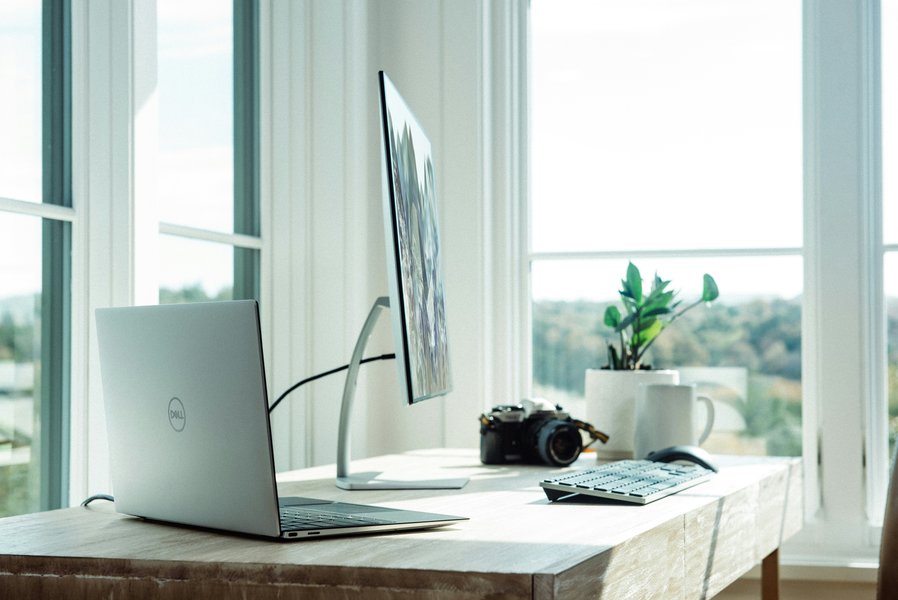
Home Office

Frequently Asked Questions

Is a 24-inch or 27-inch monitor better for office work?

A 24-inch monitor is affordable, space-efficient and suitable for general office work. A 27-inch monitor provides more working space and is better for spreadsheets, multitasking and side-by-side documents. For a 27-inch screen, QHD resolution is preferable to Full HD.

Is 4K worth it for a home office?

4K is worthwhile if you want very sharp text, work with detailed images or plan to buy a 27-inch or 32-inch premium monitor. For everyday administration and web-based work, QHD or Full HD may offer better value.

Is IPS or VA better for business use?

IPS is generally the better all-round option because it provides consistent colours and wider viewing angles. VA offers stronger contrast and can work well for large or curved monitors.

Can a USB-C monitor charge my laptop?

Yes, provided the monitor supports USB-C Power Delivery and supplies enough wattage for the laptop. The laptop’s USB-C port must also support video output through DisplayPort Alt Mode, USB4 or Thunderbolt.

Do I need DisplayPort for two monitors?

Not always. Two monitors can be connected using a combination of HDMI, DisplayPort, USB-C or a docking station. DisplayPort is particularly useful for business desktops and compatible daisy-chain monitor setups.

Need Help Choosing a Monitor?

The best monitor is not simply the largest or most expensive option. It should match the user’s workload, available desk space, computer connections and budget.

Hunter Office Technology can help supply individual monitors, dual-screen setups and complete workstation packages for home offices and businesses. We can also source laptops, desktop computers and workstation accessories from leading technology brands.

Whether you need one replacement screen or monitors for an entire team, contact Hunter Office Technology for practical advice and a tailored quote.

Share: